
Teams group members and locations so you can organize inventory by department, site, or unit. Admins create and manage teams from Account → Team Management. Here’s how to do it and how visibility works for everyone.
Creating teams
On the Team Management page, click New Team. Enter a name (e.g. “Patrol”, “Warehouse”) and click Create. The new team appears in the list and in the sidebar right away. You can create multiple teams and assign each member to one or more of them. Locations are then added per team via Manage Location when you expand that team in the sidebar. The number of teams you can create depends on your account's plan.
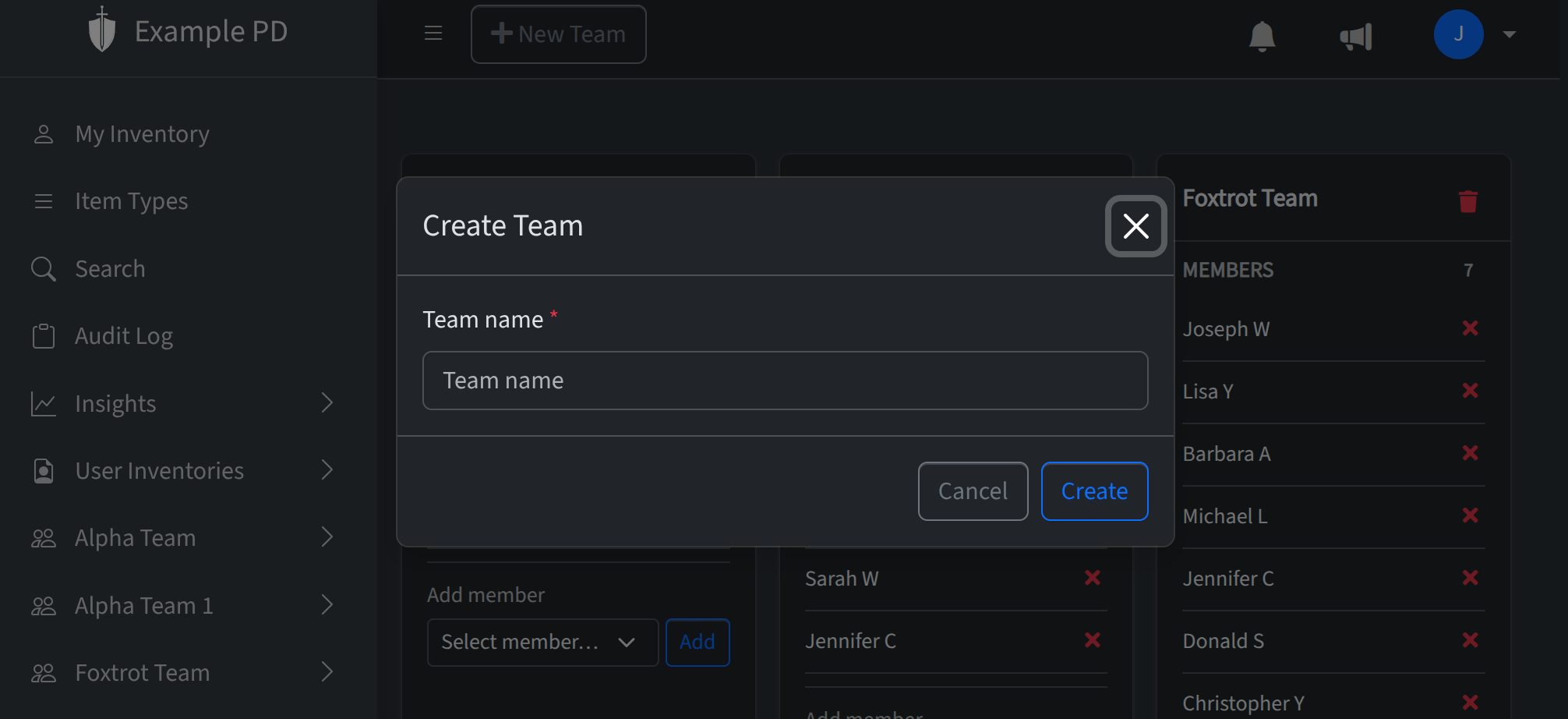
Editing the team name
To rename a team, click the team name on its card. It turns into an editable field—type the new name and press Enter or click away to save. The name updates everywhere, including in the sidebar and in the Teams column on User Management.
Adding and managing members
Each team card shows the members currently on that team. To add someone, use the Add member menu, pick an account member (only people not already on the team are listed), and click Add. To remove a member from the team, click the remove (×) button next to their name. You can also assign people to teams when you invite them—in User Management, use Invite member and choose the teams there. Members can belong to more than one team; the sidebar will show every team they’re on.
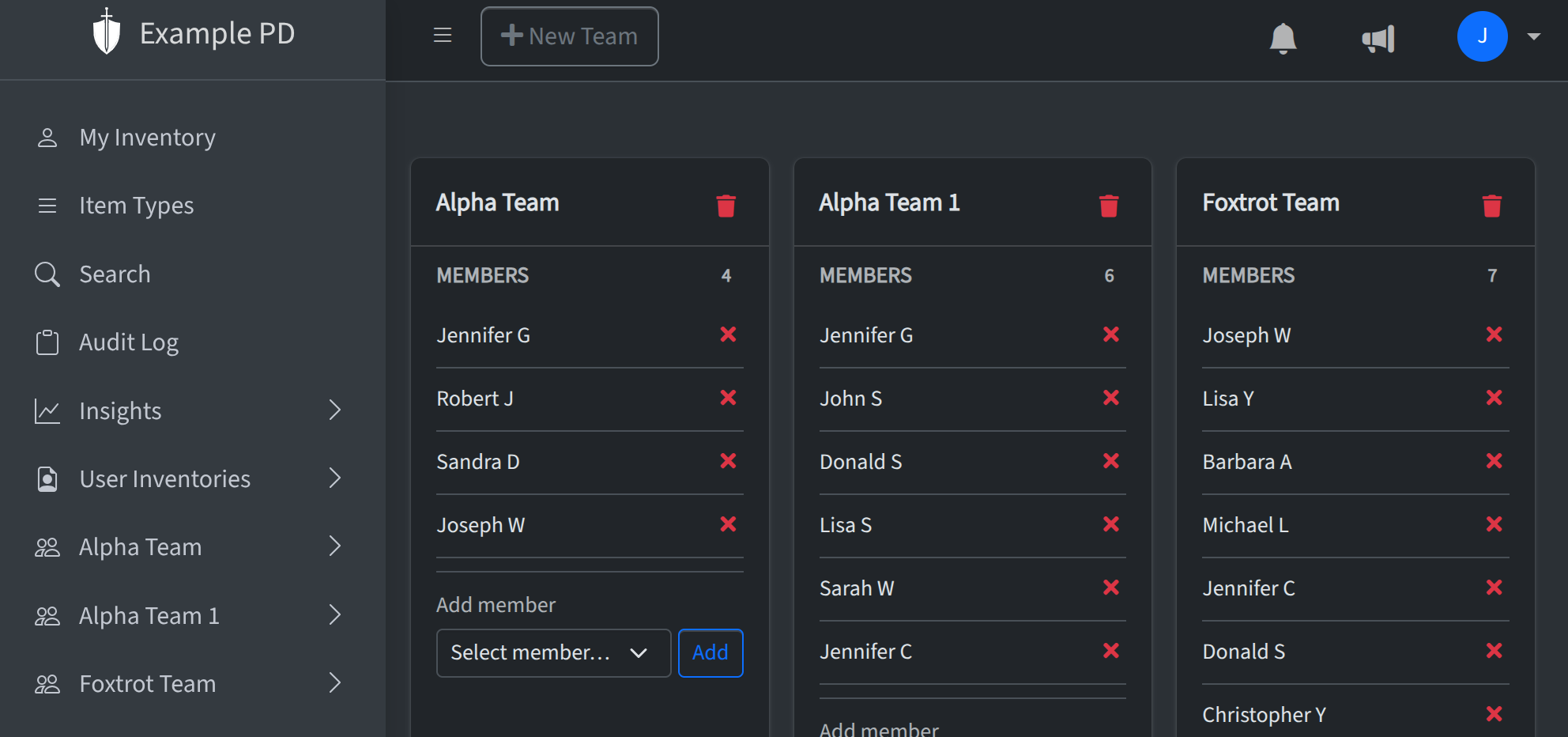
Visibility for admins, editors, and viewers
Admins (and account owners) see the Account menu in the sidebar, including Team Management. They see every team in the account and can create teams, rename them, and add or remove members. In the main sidebar they see all teams and all locations. Editors and viewers do not see the Account menu or Team Management—they can’t create or edit teams. They only see the teams they’re assigned to: those teams (and the locations under them) appear in the sidebar. So an editor or viewer might see one or two teams; an admin sees the full list. That way you control who has access to which locations and inventory by team membership.