
The Armory works on both desktop and mobile. Both are fully supported; the interface is slightly different on each to fit the device. You can use whichever is convenient for the task at hand.
Mobile and desktop layouts
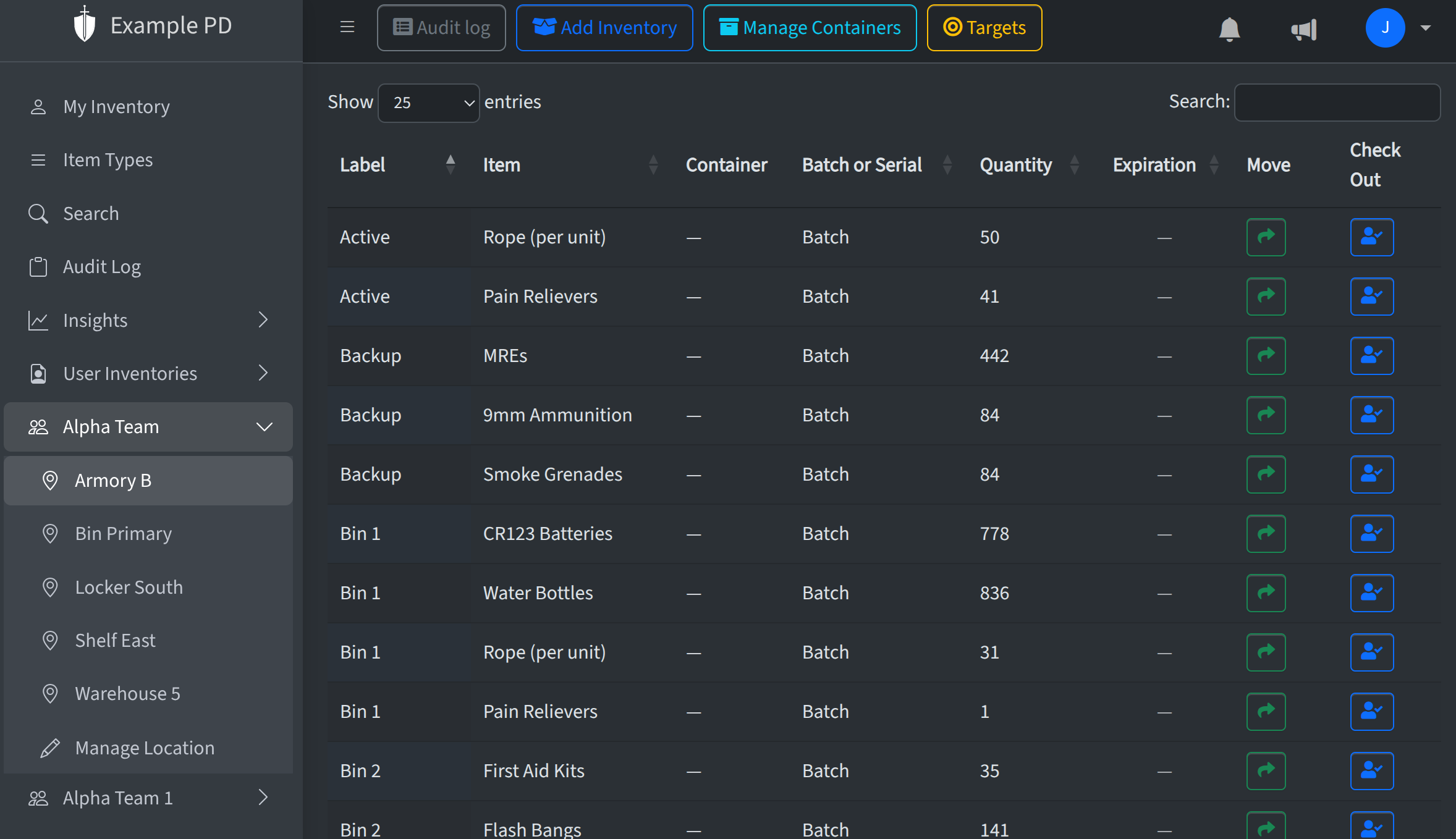
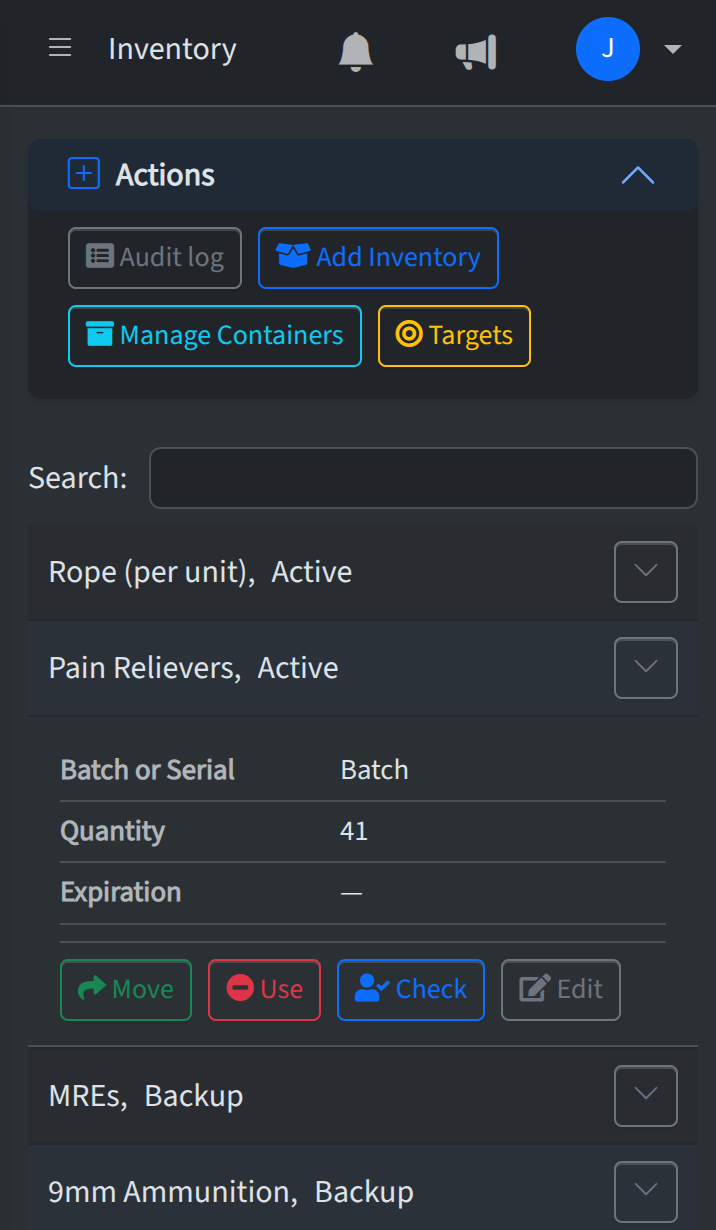
On desktop, the main navigation (teams, locations, Item Types, Search, Audit Log, Insights, Account) lives in a sidebar that stays visible. On mobile, the same navigation is available but is hidden by default to maximize screen space for content. To open it on mobile, tap the menu icon in the top right. From there you can reach all the same areas: teams and locations, Item Types, Search, Audit Log, Insights, and Account settings.
Benefits of mobile in the field
The mobile version lets officers interact with The Armory from the field. They can view inventory at a location, update counts after a shift or deployment, record usage, and move stock between locations—all from a phone or tablet. That keeps records accurate and up to date without waiting until they're back at a desk, and supports accountability and audits wherever they are.
About this guide
This help center is written with desktop in mind: screenshots and steps describe the desktop layout. On mobile there may be some navigation differences (for example, opening the menu to reach the sidebar), but all functionality is present on mobile and all guidance in these articles applies. If you use the app on a phone or tablet, follow the same steps and use the top-left menu button when you need to switch teams, locations, or sections.