
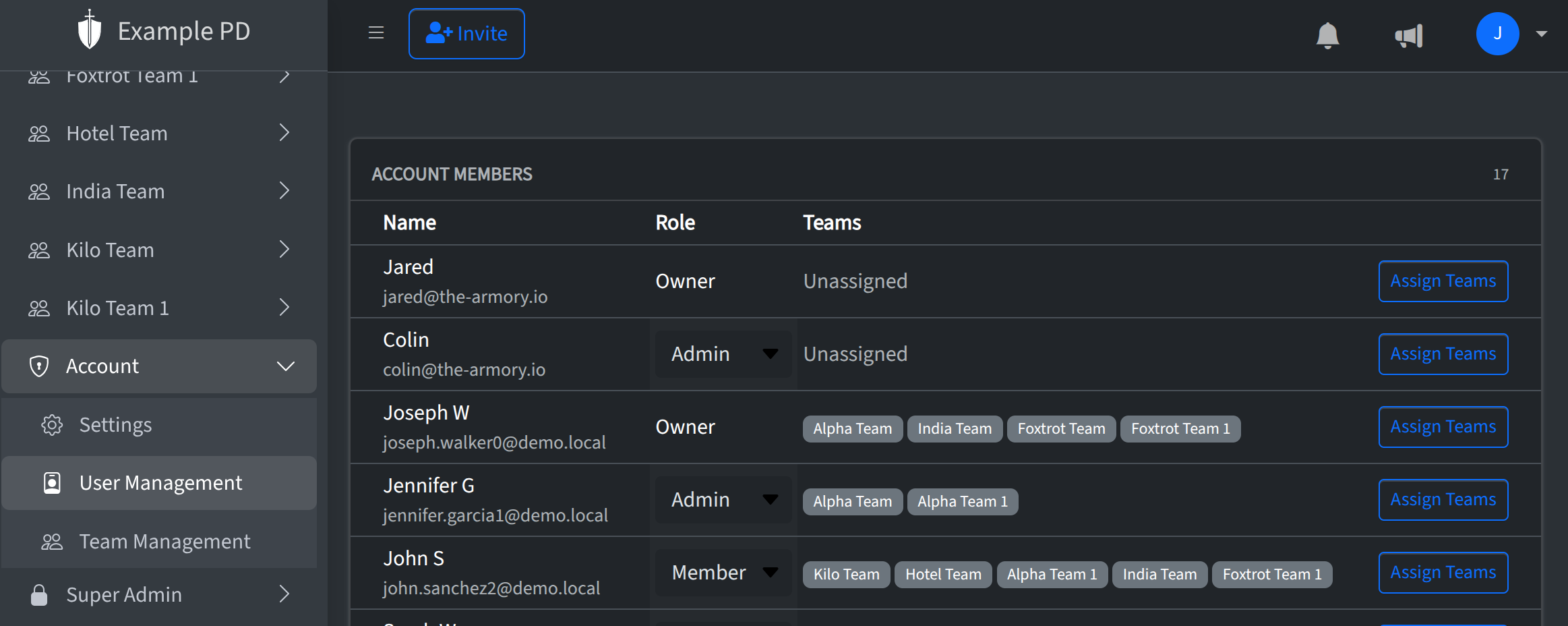
Admins manage who has access to the account from Account → User Management. You send invites, revoke them when needed, change roles, and set how people show up in the app. Here’s how it all works.
Invitations
To add someone, click Invite member and enter their email. Choose a role (Admin, Editor, or Viewer) and assign them to one or more teams. Send the invite and they’ll get an email with a link to accept and set their password. Until they accept, they appear under Pending invites—they’re not on the team list yet and can’t sign in. Once they accept, they become an active member and show up in the members list with the role and teams you assigned.
Cancelling invitations
If you invited the wrong person or the invite is no longer needed, you can revoke it. In User Management, find the invite under Pending invites and use the revoke action (trash icon). The invite link in their email will stop working and they won’t be able to join. If you need them later, send a new invite.
Updating user roles
You can change a member’s role at any time. In the members list, use the role menu on their row and pick Admin, Member, or Viewer. The change saves immediately and applies across the account—they’ll have the new permissions the next time they load the app.
Display names
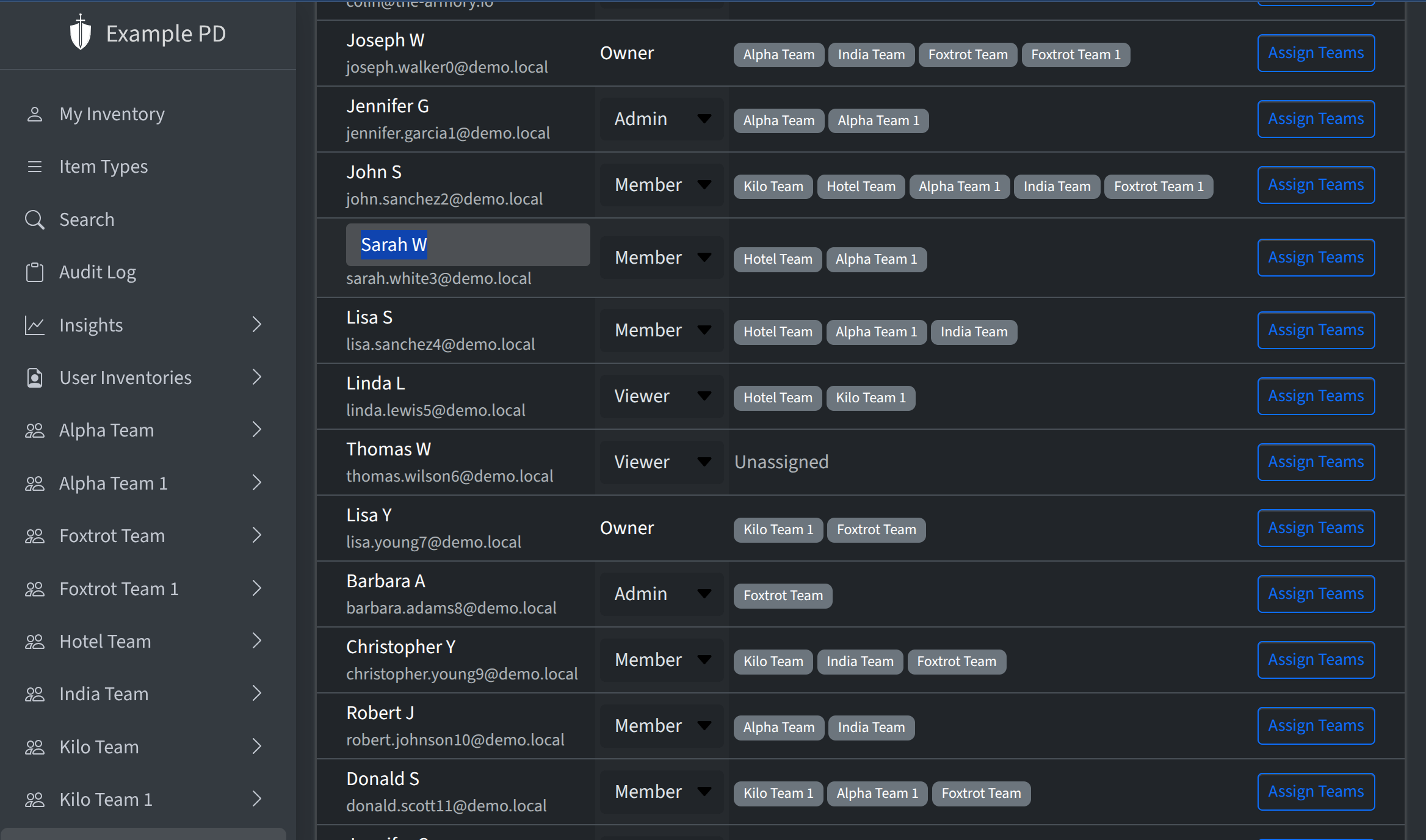
Each member has a display name that appears in the sidebar, audit log, and elsewhere (e.g. who updated a count). By default it may show their email. You can set a friendlier name: in the members list, click the name to edit it inline, type the new name, then click outside the field or press Enter to save. That name is used account-wide so reports and history stay readable.
Insights access
In the members list, the Insights column controls whether that member can see Insights in the sidebar (dashboards and reports for inventory health, activity, usage, and financial data). This setting is off by default for editors and viewers. Admins and owners always have access to Insights and the flag cannot be changed for them.
Insights are off by default for non-admins because they show information for the entire account—including teams the member is not part of, location-level summaries, and account-wide metrics. If you want a member or viewer to use these reports, turn the Insights switch on for their row in User Management. Leave it off if they should only work within the teams and locations they can already see in the sidebar.