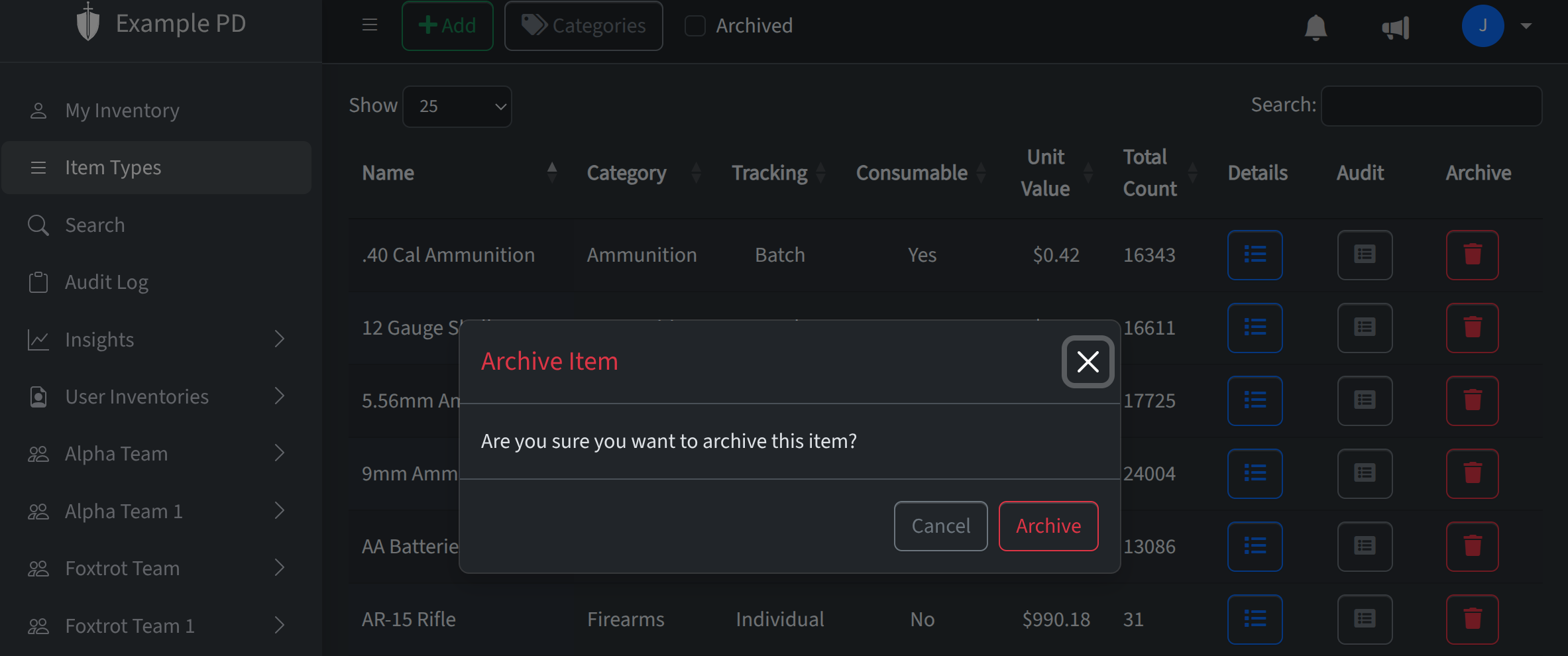
Item types are the “what” you track—gloves, ammo, radios, certifications, or whatever your agency needs. Defining them up front keeps everyone using the same names and settings so counts and reports stay consistent across teams and locations. Here’s how they work and what you can do with them.
What they are and why they matter
Each item type has a name and belongs to a category (e.g. “Safety”, “Ammunition”). Categories group related types and keep the list manageable. Item types are shared across the whole account—once you create one, you can add inventory for it at any location. That way you’re not reinventing the wheel at each site; you just pick the type and enter quantities or serial numbers.
How to add an item type
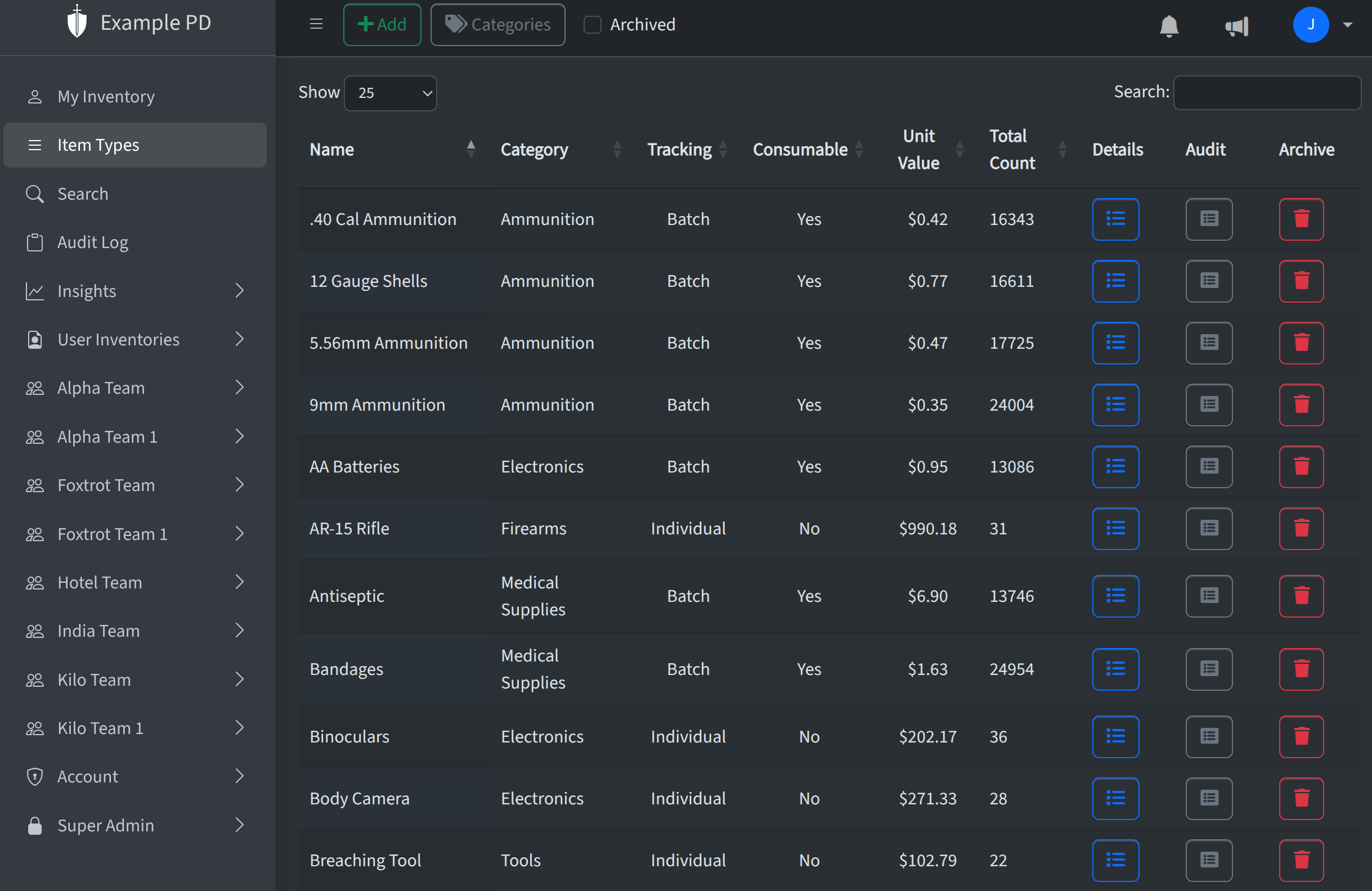
Go to Item Types in the sidebar and click the Add button at the top. A form appears where you enter the name and choose a category. You can also set options like whether it’s tracked by individual unit (e.g. serialized) or by quantity, and (if your account uses it) a default unit value. Save and the new type appears in the list, ready to use when you add inventory.
Modifying an item type
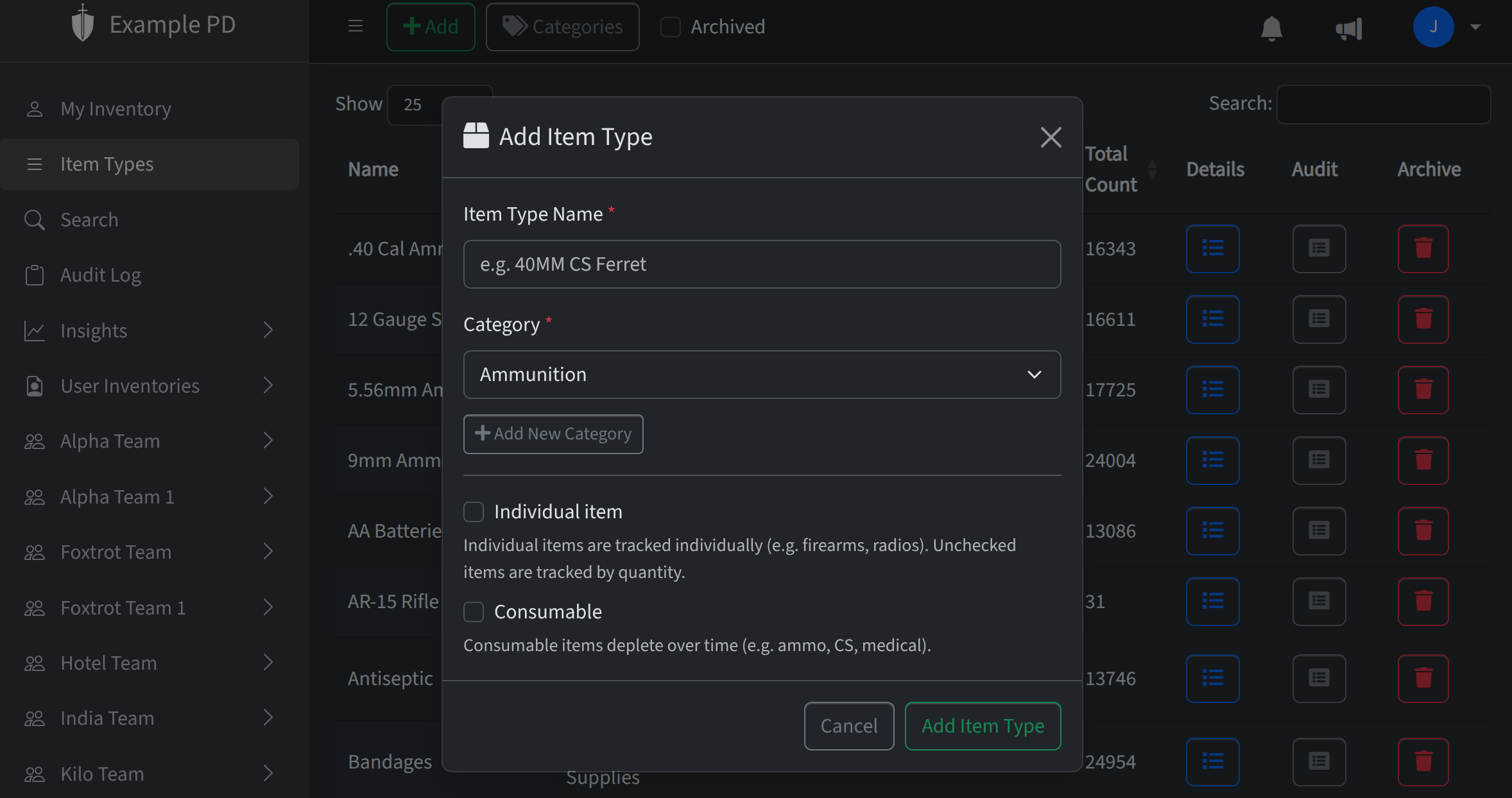
On the Item Types page, you can change an existing type by clicking into the fields you want to edit—name, category, unit value, and so on. Changes save as you go. Note that total count is not editable: it’s the sum of inventory for that item type across every team and location, so it updates automatically as you add, use, or move stock.
Unit value and total count
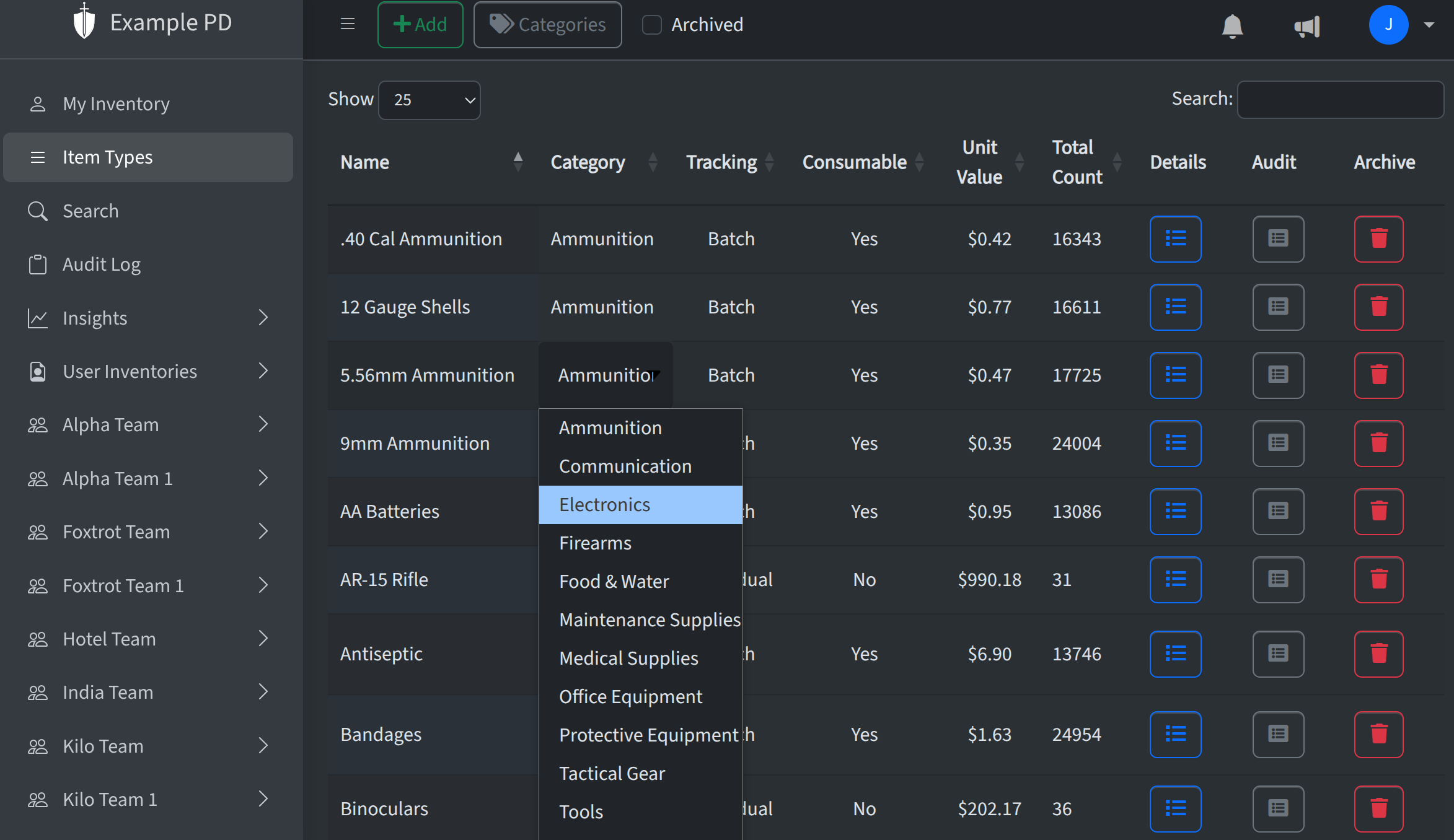
Unit value is an optional per-unit value (e.g. in dollars) you can set on an item type. It’s used for reporting and valuation when your account tracks financial data. Tracking financial data must be enabled in Account → Settings; otherwise the unit value column does not appear. Total count is the aggregated quantity (or number of serialized units) for that item type everywhere in your account—all locations and teams combined. You can’t change it directly; it’s there so you can see at a glance how much you have in total.
Actions: archive and more
If you stop using an item type but don’t want to lose history, you can archive it. Archiving hides it from the active list and from “add inventory” list, but existing inventory and audit history stay intact. You can’t archive a type that still has inventory—zero out or move that stock first. Need it again later? You can unarchive it so it shows up in the list and in add-inventory again. Other actions on the Item Types page include filtering or searching the list and (admins only) creating or editing categories.