Your user profile is where you update your name and email, change your password, and control email notification preferences. Everything on the profile page applies only to you—it's your personal settings, not account-wide admin options.
Getting to your profile
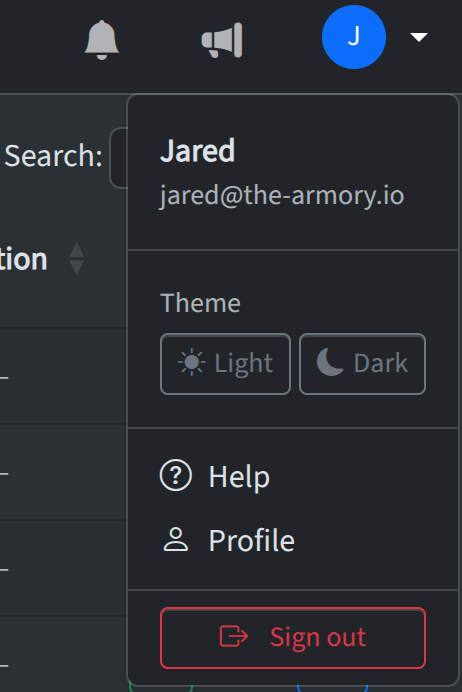
In the top-right corner of the app, click the blue circle with the first letter of your name in it to open the user menu. Choose Profile to open your profile page. From there you can edit your information, password, and notification settings.
Profile information
In the Profile Information section you can update your First name, Last name, and Email address. These values are used across the app (e.g. in the audit log and when you check out inventory). Click Save Changes to apply. If an admin manages display names from User Management, that may override how your name appears in some places; your profile name is still the one you control for signing in and for your own display.
Change password
Use the Change Password card to set a new password. Enter your current password, then your new password and confirmation. Passwords must be at least 8 characters. Click Update Password to save.
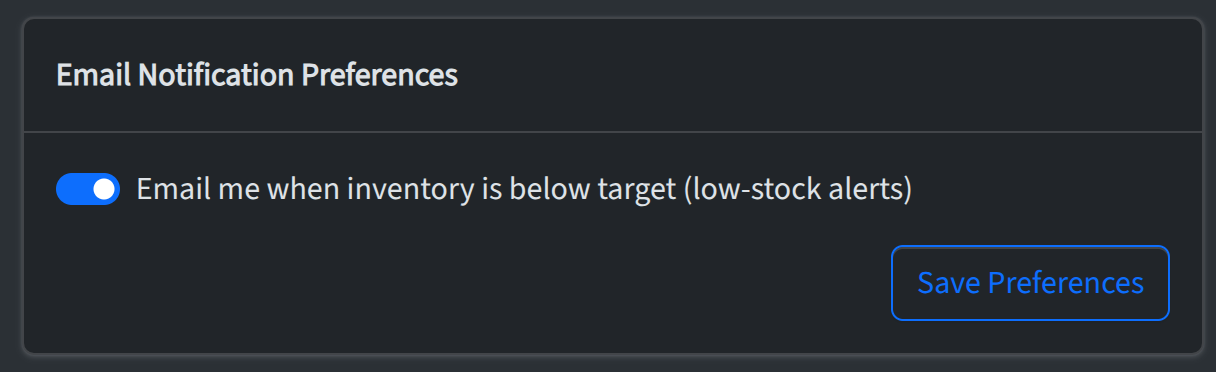
Email notification preferences
In the Email Notification Preferences section you can choose whether to receive email when inventory is below target (low-stock alerts) or when items are expiring (expiration alerts). Turn the option on or off and click Save Preferences. Account-wide alert rules (e.g. when low-stock or expiration alerts fire) are set by admins in Account → Settings; your profile controls whether you get emailed for those alerts.