
The audit log records every inventory change: who did it, what changed, and when. It’s your source of truth for accountability and reviews. Here’s what gets logged, how to filter it, where to open it from, and how to use it with exports and reports.
What is logged
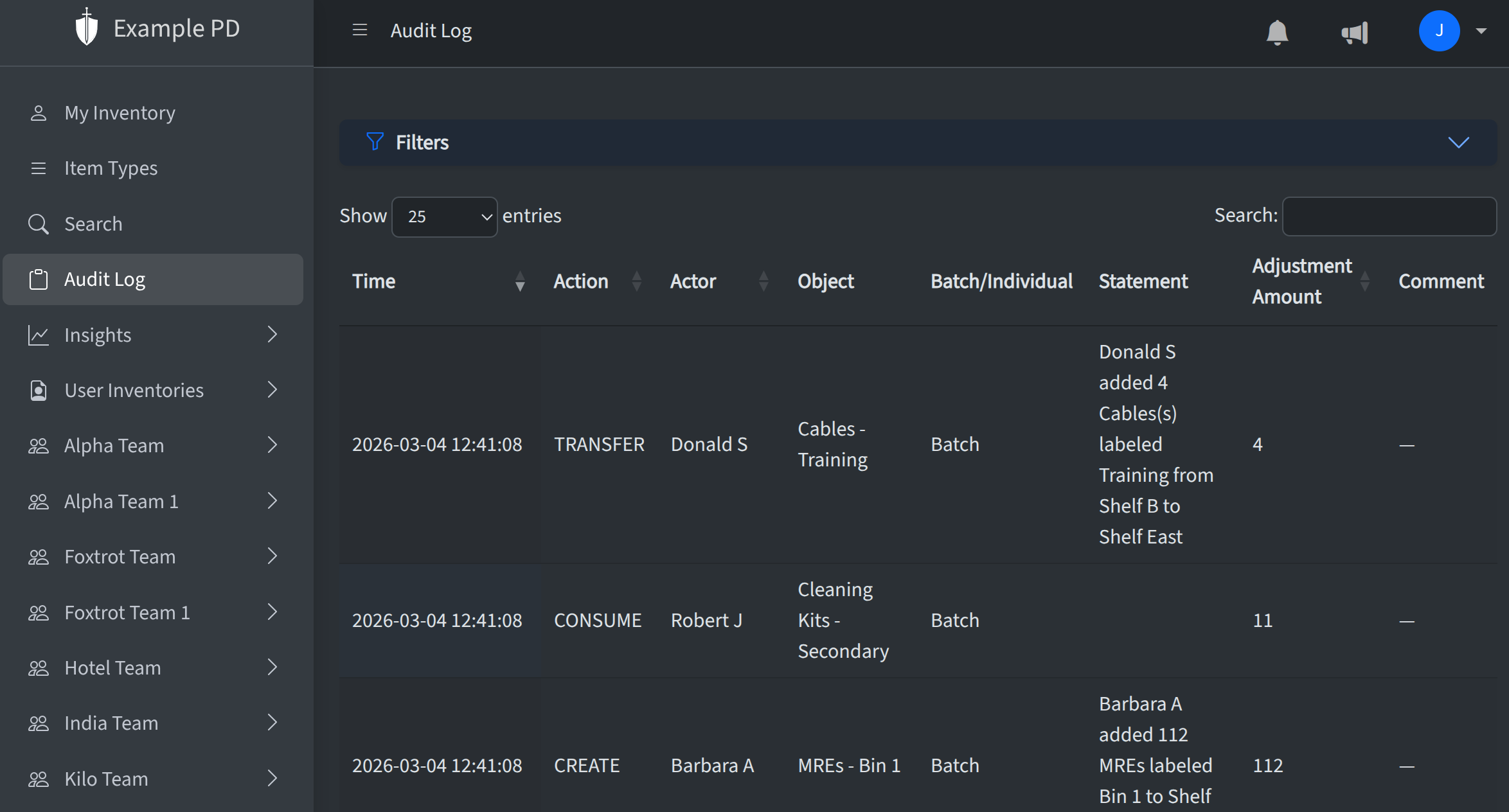
Each entry in the audit log is an action on inventory or locations. Actions include: CREATE (inventory added), REMOVE (inventory removed or written off), TRANSFER (stock moved between locations), CONSUME (usage recorded), and ADMIN_ADJUST (count corrected by an admin). For each entry you see the time, the actor (who made the change), the object (item type, batch or serial, location), and any comment or adjustment amount. Optional comments you enter when adding, moving, or adjusting inventory are stored here too, so you can document reasons for changes.
Filtering options
Use the Filters panel on the audit log page to narrow results. You can set a From date and To date, and filter by Team, Item type, or Location. Combine filters to focus on a specific team, location, or item type. The table also supports search across action, actor, object, and comment. Click Apply to run the filters and Clear to reset them.

Exporting the audit log
In the same Filters row, use Export to download the audit log as CSV or Excel (.xlsx). The file includes the same columns as the table (time, action, actor, object, batch vs. individual, statement, adjustment amount, and comment), with entries ordered from newest to oldest. The export uses whatever you have filtered and searched right now: date range, team, item type, location, and the table’s search box all apply. Set filters and search first, then choose CSV or Excel for a spreadsheet you can archive, attach to a report, or analyze outside the app.
Where the audit log is linked
You can open the audit log from several places so it’s easy to see history in context. In the sidebar, Audit Log is a top-level link that opens the full log. From a location’s inventory view, use the Audit log button to open the log pre-filtered to that location. From an item type (on the Item Types page), use the Audit action to open the log filtered to that item type; from an item type’s location-level view you can open the log filtered to both that item type and location. Under Insights → Exports & Reports, the Audit trail report link takes you to the audit log as well. That way you can jump from inventory or item types straight into the relevant history.
Export and reports
The audit log is viewable and filterable in the app. To export account data (including for reporting and compliance), use Insights → Exports & Reports for a full-account Export all data (Excel) snapshot, or open the audit log from the Audit trail report link. You can also use Export on the Inventory Health, Inventory & Activity, and Usage & Activity dashboards to download CSV or Excel. For details on every export option, see Reports.