
Here’s a quick run-through to get you up and running: we’ll add a team, invite some members, set up locations, define what you’re tracking, and then add inventory. If you want to go deeper on any step, we’ve linked to the relevant articles.
1. Add a team
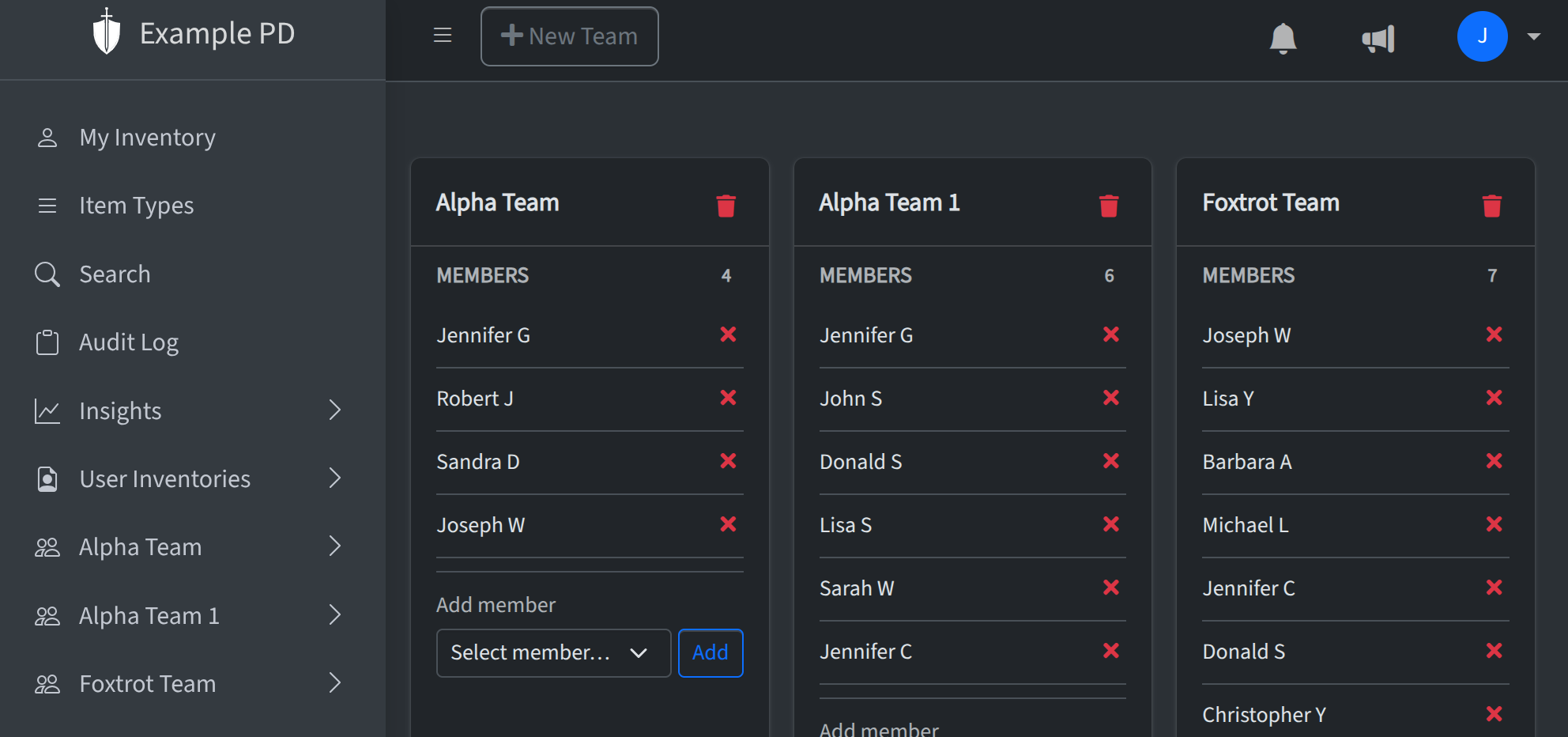
First, head to Account → Team Management in the sidebar. Create a team—maybe by department or location—and give it a name you’ll recognize. Once it’s created, you’ll see it show up in the sidebar so you can use it right away. Need more detail? Check out Managing teams.
2. Add members to the team
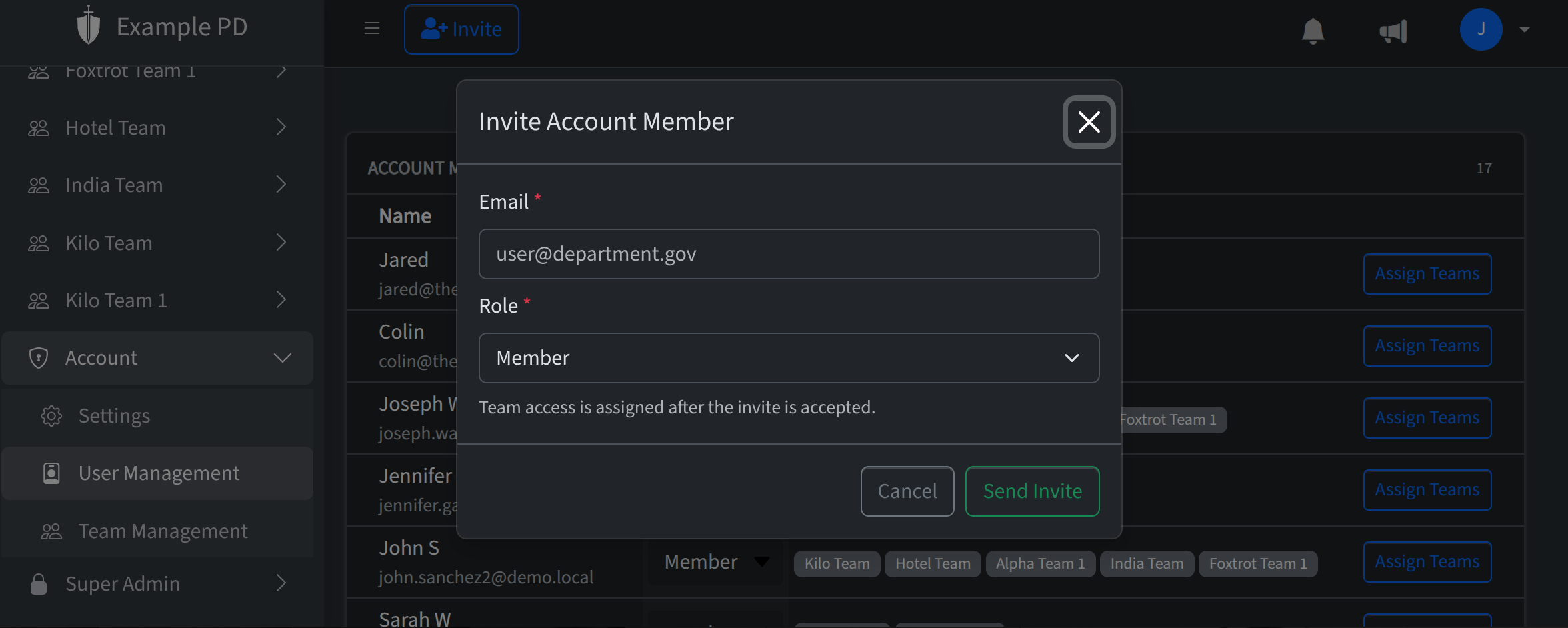
Next, go to Account → User Management. Hit Invite member, add their email, pick a role (Admin, Editor, or Viewer), and assign them to the team you just created. They’ll get an email to join—note that they must accept the invite before they can be added to teams, so they’ll need to click the link in that email first. We cover this in Managing members.
3. Add locations (Editors and admins)
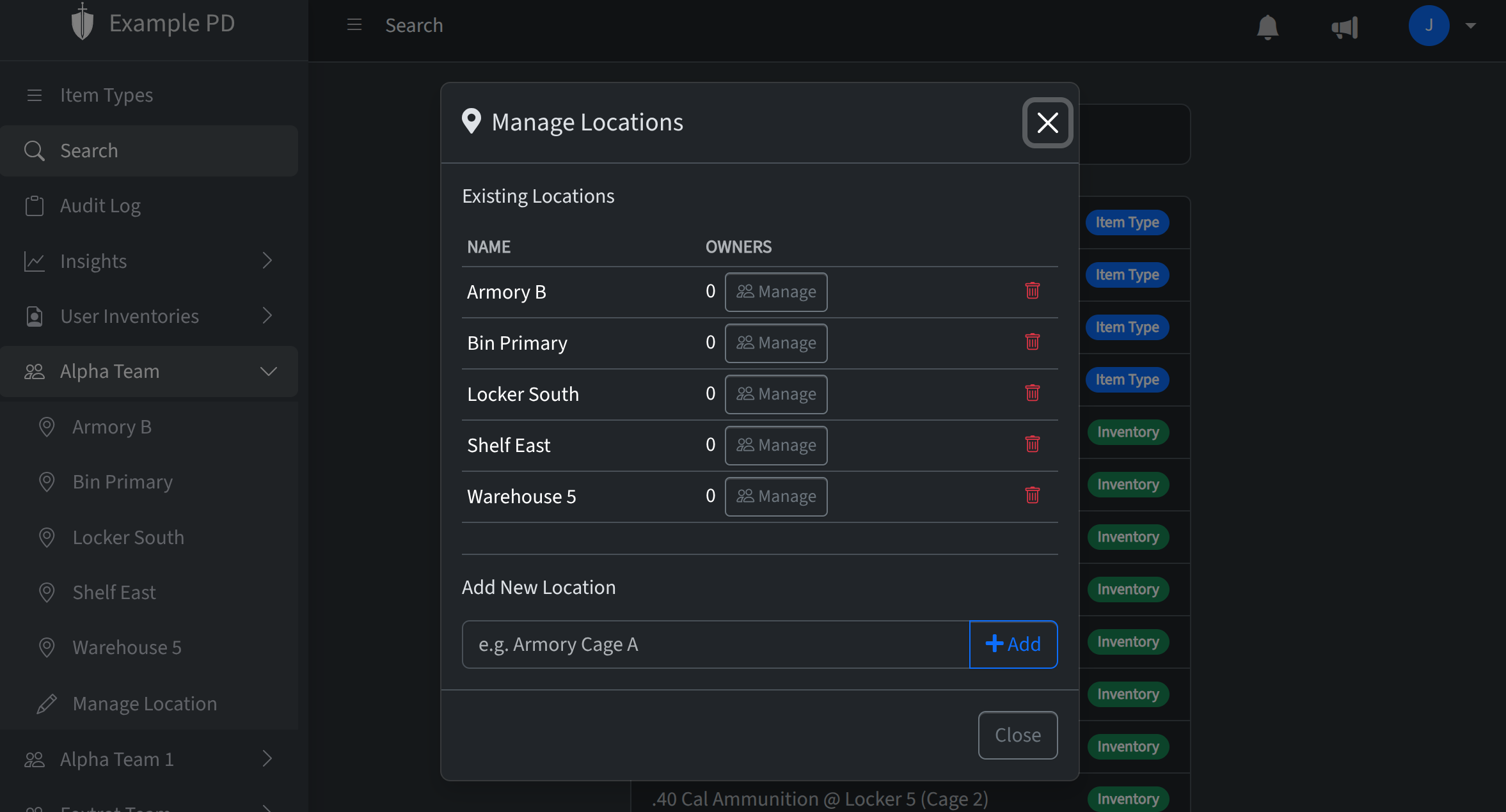
In the sidebar, click your team to expand it, then click Manage Location. From there you can add locations (e.g. "Main warehouse", "Truck 1").
4. Add item types
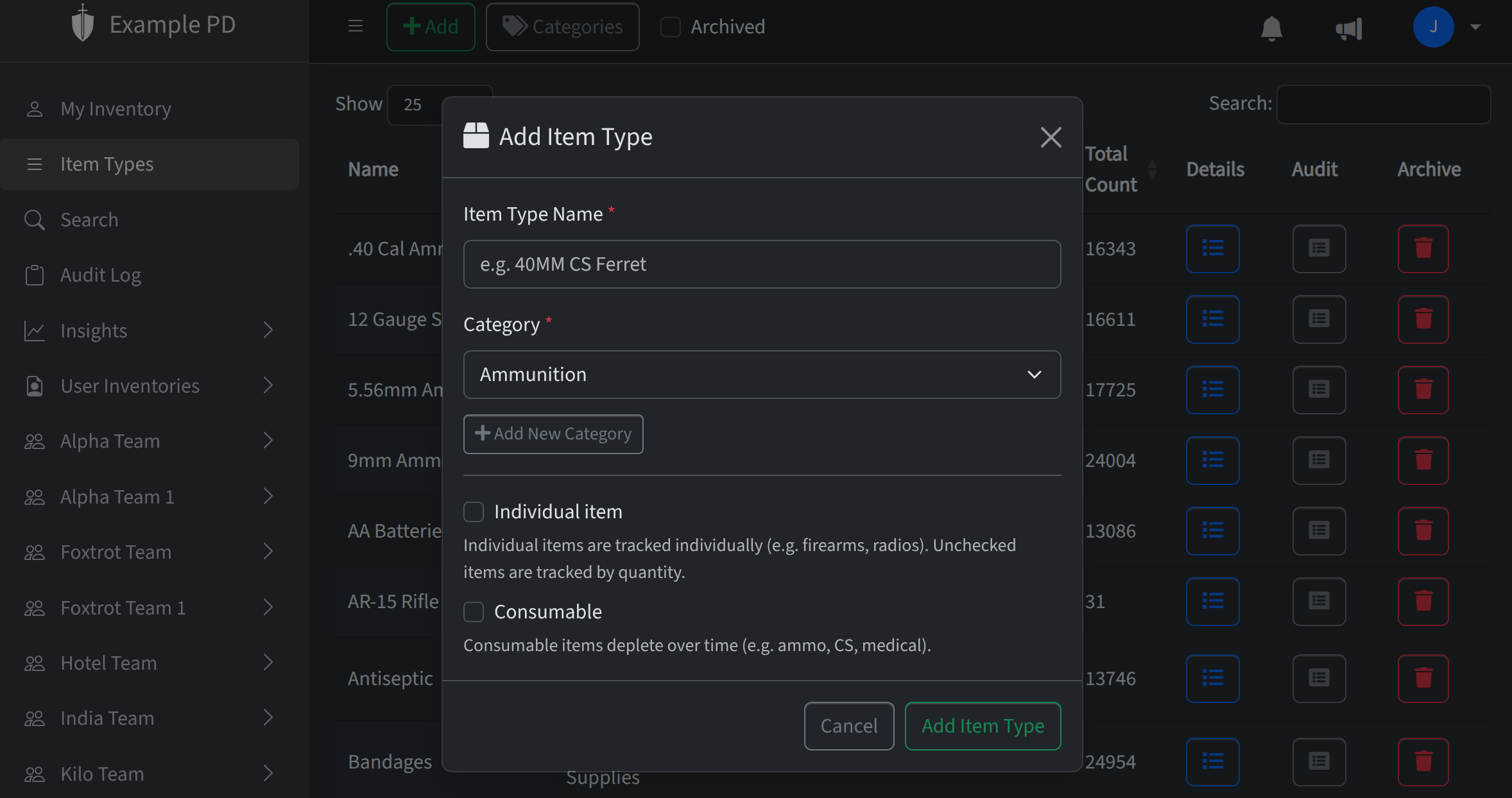
Click Item Types in the sidebar, then the Add button. Set a name and category—and optionally low-stock or expiration rules. That way everyone’s tracking the same things across teams and locations.
5. Add inventory
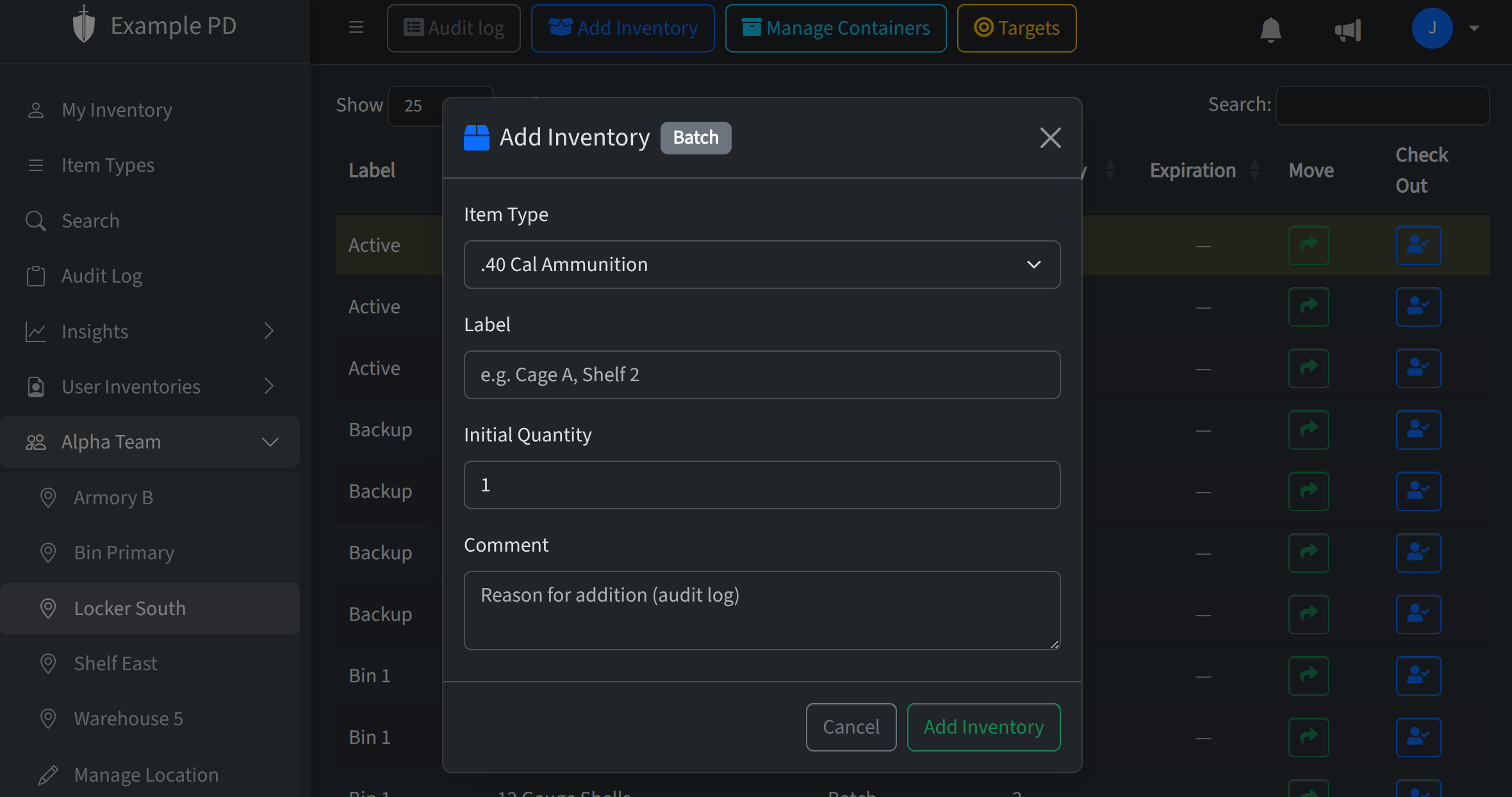
Open your team in the sidebar and pick a location. You’ll see that location’s inventory (this will start empty). Use Add inventory to add quantities for each item type—and optional serial numbers or expiration dates. You can update counts or move inventory between locations from here too. Details in Managing inventory.
That’s it for the basics. From here your team can record and track inventory at each location. When you’re ready, use Insights in the sidebar for reports and set up low-stock alerts and expiration alerts so you stay on top of what needs reordering.