
Low stock alerts help you reorder before you run out. You set a minimum quantity per item type at each location; when the total (aggregate) quantity for that item type at that location falls at or below the minimum, the item type is flagged so you can restock.
Per item type (aggregate)
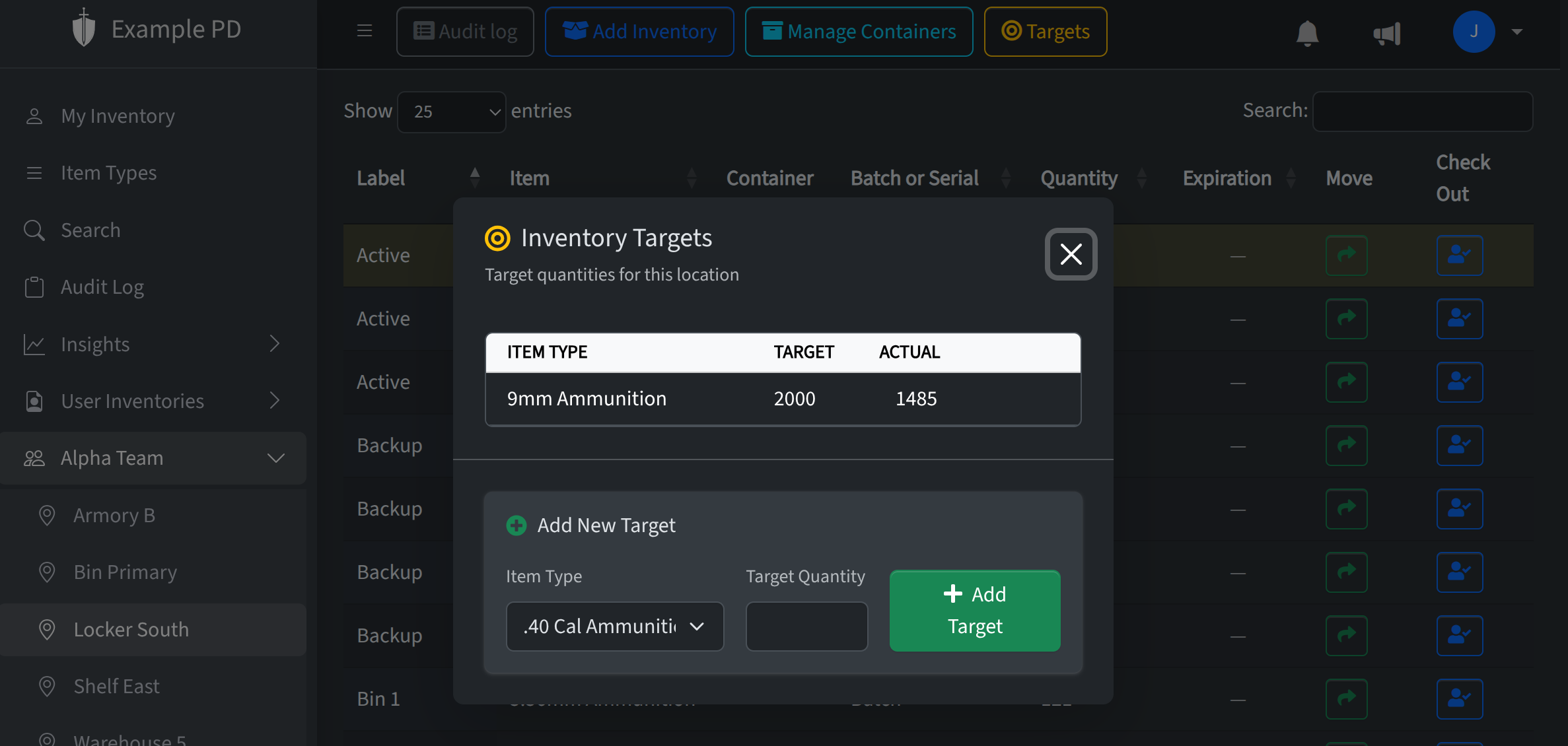
The low-stock threshold is per location, per item type. If you have multiple inventory rows (e.g. multiple batches or identifiers) that all belong to the same item type at a location, the target applies to the aggregate—the sum of quantity across those rows. So one threshold is compared to the total quantity for that item type at that location.
Where to set low stock
In the inventory view for a location, each item type (row) can have its own minimum quantity (target). Open the Targets button at the top of the page to set or edit the minimum for that location—different locations can have different thresholds for the same item type.
When the alert fires (Account settings)
In Account → Settings, admins can set when the alert fires: a “percent below target” (e.g. alert when quantity is 10% below the threshold). That setting applies account-wide; the threshold itself is still set per location per item type.
Where you’ll see low stock
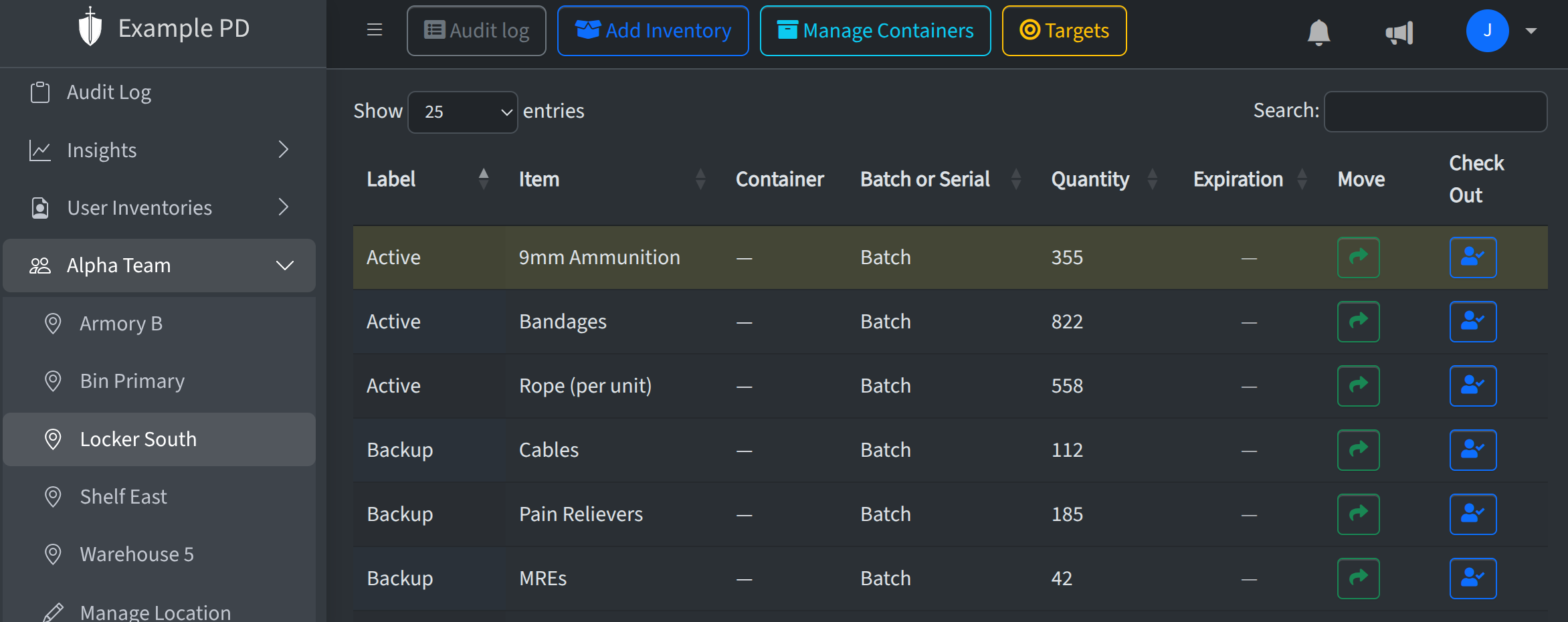
When an item type is at or below its minimum at a location:
- Inventory view — Rows that are in low stock are shown in yellow so you can spot them quickly.
- Insights → Inventory Health — Low-stock item types appear in reports.
- Notifications — Location owners will receive notifications.
Keeping alerts useful
Review and adjust thresholds when usage or lead times change. If you get too many alerts, raise the minimum slightly; if you’re often running out before reorder, lower it or set a minimum for item types that don’t have one yet.